Identifying Properties of Windows
Common Identification Attributes
Common identification attributes refer to identification attributes that all controls can have, regardless of the control type.
name
The internal name of the control.
type
The type of control, required attributes, cannot be changed and deleted, and affects the operation API provided by the control. Types such as Button, Text, Window, List, Table, Tree, etc.
className
The control class to which the control belongs comes from the class of the control in the code. For example, the control usually used as a window in Qt is QWidget, then the type of the window in the application is Window, and the className is QWidget, as shown in the following figure:
Since the value of className is usually only related to type and the framework used by the application (Qt, WPF, WinForm, etc.), it is sometimes possible to distinguish the framework used by the application through the className attribute.
automationId
Generally from the .NET framework, it is a property used for automated testing in the target control,The explanation in the official documentation is:
An ID for an element that is unique among siblings within its container.
The unique identifier of the control relative to its siblings in the same container.
Therefore, it is suitable for the automation of applications and controls in the .NET framework (such as WPF, WinForm, etc.), and is generally null for controls in other types of applications.
accessKey
The accessKey of the target control, similar to automationId, is a property used for automation, and it is also usually a null value.
value
The value of the target control (usually a variable value), and is the same as the result returned by the value property method. As an additional attribute, it can be added manually as a recognition attribute.
Usually, variable attributes like
valueare not ideal for identifying attributes, because when the value of the control changes, it will not be recognized. However, during the development process of some applications, the editable control will be set as non-editable, at this time value can be used as an identification attribute.
appName
The appName attribute exists in the root node window object and is used to identify the application. Its value is the part of the executable file name without the suffix. For example, the executable file of the Windows notepad is "notepad.exe", then the attribute value of appName="notepad" will be obtained when identifying the window object of the notepad application.
By default, after appName is recognized, it will not be used as an identification attribute, but will exist as other attributes. If you find that the top-level window identification attributes of the application are too few to uniquely identify the application under test, you can manually add appName to the identification attributes.
For Electron applications, appName will play a more important role. Because the Electron application uses the implementation of Chrome, the identification properties of its top-level window are similar to Chrome. On the other hand, since CukeTest also uses Electron, it is also helpful to distinguish CukeTest when using the appName property when automating book.product}} and the application under test. Therefore, when using the Windows detection method to identify the Electron application interface, appName will be actively used as the identification attribute.
Auxiliary identification attributes
index
The position of the target control among the multiple controls that are matched at one time is also one of the solutions when there are too few identification attributes. Here we need to explain how the model manager handles when it recognizes multiple controls:
When multiple controls are recognized:When the model manager/detector recognizes multiple controls (maybe because the recognition attributes are general, or there are controls with the same name in the application, etc.), it will return all the recognized controls in the form of an array, and at the same time in the model object Object nodes in the tree that cannot match a unique control are marked red. The
indexattribute is used to retrieve the control at the specified position in the array, for example, return the first one when it is0, return the second one when it is1... and display all the recognized control information in the model manager lower left. When the model manager finds that an object node will match multiple controls, it will mark the object node in red, which means that the object node has not passed unique verification, operate the node It may bring wrong results, you can useautomatically add indexor manually add index to solve it.
The index attribute is applicable to a wide range of scenarios, but it also has its limitations. As mentioned earlier, the index property is based on the position in the array returned when multiple controls are identified. It is possible for applications whose control layout does not change, but if the control layout and number of controls of an application may change, such as the automation for List and Tree controls in Qt automation, the index may be unreliable.
It can be considered that the
indexproperty is0by default, that is, the first matching control is always operated.Search Hint:
searchHint
The searchHint property provides search hints to help the test automation find the target control more quickly and accurately, determining the strategy used to locate the control. Currently supported searchHint property values include fromPoint and navigate.
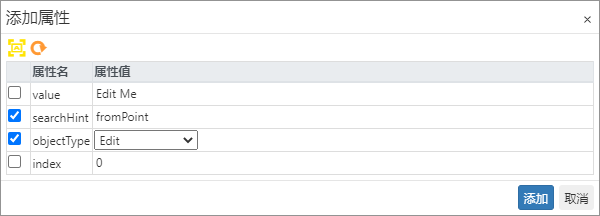
1. Coordinate-based Control Search: fromPoint
fromPoint is a method of searching for child controls by traversing coordinate points in the control area. It is suitable for controls that are not visible in the UI Automation tree but can be detected (such as controls developed using ATL or DevExpress technologies). These controls are typically characterized by: they can be spied, but cannot be highlighted, and no child controls are visible under the parent control (i.e., findControls() returns an empty array).
When the fromPoint property is specified for a control, the default child control search method is changed. Normally, the program calls the UIA FindAll API to search for child controls; however, when using fromPoint, the program traverses the control area at 10-pixel intervals and locates child controls through coordinates.
When to use fromPoint?
Consider using the fromPoint property if:
- A control can be detected in the Model Manager and passes unique verification, but cannot be highlighted after saving (assuming control properties imply no change and the app hasn't restarted).
- When viewing in the Control Spy, no child controls are displayed under the parent control (or
findControls()returns an empty array).
In this case, you can add the fromPoint property to the parent control to ensure its child controls can be properly located.
Note: The behavior of
fromPointhas been adjusted since CukeTest version 1.8.3.108. The above explanation applies to this version and later.
2. Navigation-based Control Search: navigate
The navigate property uses navigation methods to locate child controls instead of relying on UIA search APIs. This method is suitable for resolving issues where locating certain controls causes freezing or UIA service crashes, especially in older applications.
When using the navigate property, the program first locates the parent control of the current control, and then uses firstChild() and next() methods to navigate sequentially until the matching control is found.
Usage Notes:
navigateignores child items within container controls (such aslistItem,treeItem,tableItem). In these scenarios, you need to specify the container at the upper level of theitemcontrol, for example, specifyinglistas the container forlistItem.
The following is example code for locating a listItem using navigate in Descriptive Mode:
let listItem = WinAuto.getGeneric([
    {
        "type": "Window",
        "automationId": "MainForm",
        "appName": "ProgramName",
        "searchHint": "navigate"
    },
    {
        "type": "List",
        "className~": "^WindowsForms10\\.SysListView32\\.app\\.",
        "index": "2" // string "2" is also acceptable
    }, {
        "type": "ListItem",
        "automationId": "ListViewItem-6"
    }
])
objectType
The abstract type of the target control. Since the type of the control and the classType of the control class to which it belongs cannot be changed, it will be determined when the development is completed, and objectType tells CukeTest what type of control the control should be designed to handle.
For example, in the Windows 11 File Explorer, the controls displaying file groups are identified as Group. This means they strictly do not provide a data() method to directly get data. However, by setting the objectType of these controls to List, we can operate them as List controls, thereby using all methods and properties of a list control.
In practice, after setting objectType to List, we can use list-related operations in the script, as shown below:
await model.getList("Last Month").data(); // After setting to List type, you can also use List control intellisense to improve coding efficiencymodel.getList("Last Month").data()This approach not only enhances script readability but also accelerates the script writing and debugging process through intellisense.
childLocator
The sub-control contained in the target control. When the two containers have exactly the same properties, it can also be identified by whether the target container contains a certain sub-control. This property can be directly added in the model management, and can be selected directly through the drop-down box Existing child controls, as shown below:

levelToParent
The hierarchy of the target control. For multi-level applications, sometimes there are children or parents of the target control with the same name, so you can avoid recognizing unwanted controls by limiting the recognition level, as shown in the following figure.
! The levelToParent property recognition schematic

unique attributes
Unique properties refer to properties that only exist in certain types of controls.
text
The text content of the target control, which exists in the Text control.
url
The link pointed to by the target control exists in the Hyperlink control.
title
The title of the target control, usually found in Window controls.
hWnd
The window handle of the target control, only exists in the Window control.
helpText
The help text of the target control, most controls have this property, but it is often empty.
processId
The process ID of the application where the target control is located is the PID. It is commonly used in Descriptive Mode.
other attributes
boundingRectangle
The shape information of the target control is described by a set of arrays with a length of 4. The values in the array represent: [x, y, width, height], where x and y represent the coordinates of the control in desktop system, width and height represent the width and height of the control.boundingRectangle is usually used to draw the highlight frame of the control. Since the size and position of the application windowing are uncertain, boundingRectangle will be very unstable, so it is rarely used as an identification attribute. If the controls in the application cannot be well identified and the coordinates of the controls must be used as the target of the operation, then Virtual Controls is recommended as a solution.
appPath
Similar to the appName property, the appPath property only exists in the top-level window object, and it is the execution path when the application under test is detected for the first time. The difference is that appPath cannot be used as an identification property. It can help Start the application under test. If the root object has this attribute, right-click on the object, and the "Start Application" option will appear in the pop-up menu. Selecting this option will directly start the application, provided that the value of appPath can locate this executable file.
Using identifying attributes in code
In some cases, we can skip the model manager and get the target control directly in the code by identifying attributes, which can achieve more flexible automation in many cases, just like several Qt walkthroughs. And the use isfindControlsmethod, for its usage instructions, please click to view Get Object API.