HOWTO: Resolve Object Not Found Issues
When running automation in CukeTest, you may encounter the error Error: 1001: Object not found, "ControlName". This indicates that CukeTest failed to locate the specified UI control during execution. This guide explains common causes of this issue and provides diagnostic steps and solutions to help you resolve it.
Before troubleshooting, ensure that the .tmodel file associated with your test script is open. In CukeTest, click the .tmodel file to open it in the Model Manager.
Initial Diagnosis — Use the Highlight Feature
Navigate to the control referenced in the error within Model Manager and open the application screen that contains it. In Model Manager, select the control and click the Highlight  button on the toolbar.
- If the control is highlighted correctly (a red rectangle appears on the UI): the control is discoverable, and the issue is likely timing-related. See Case 1 below.
- If the control cannot be highlighted and the UI shows
1001: Object not found: Model Manager also cannot locate the control in the current application state. Continue diagnosis with Case 2, Case 3, and Case 4.
Causes and Solutions
Case 1: The application UI has not fully loaded (control can be highlighted in Model Manager)
Symptom
The target control can be highlighted successfully in Model Manager.
Cause
The automation script runs too quickly — by the time the step operating on the control executes, the application UI or certain elements may not be fully loaded or rendered. This is common in applications that load many resources or on slower devices.
Solution
Add waits before operating on the control to ensure the UI is ready. For example, after launching the app with launchProcess() or before a specific operation, wait for the window or a key parent control using exists().
// Example: Wait up to 20 seconds for the window object named "Window"
await model.getWindow("Window").exists(20);
// Then perform subsequent control operations
await model.getButton("login").click();
# Wait up to 20 seconds for the window object named "Window"
model.getWindow("Window").exists(20)
# Then perform subsequent control operations
model.getButton("login").click()Replace "Window" with your top-level window object name and adjust the timeout (e.g., 20 seconds) to suit your application. If you prefer to wait for a specific control, call exists() directly on that control.
// Example: Wait up to 10 seconds for the button named "SubmitButton"
await model.getButton("SubmitButton").exists(10);
await model.getButton("SubmitButton").click();
# Example: Wait up to 10 seconds for the button named "SubmitButton"
model.getButton("SubmitButton").exists(10)
model.getButton("SubmitButton").click()Case 2: A required parent control cannot be found (control cannot be highlighted in Model Manager)
Symptom
Highlighting the target control in Model Manager immediately returns 1001: Object not found. The status bar may indicate that a parent control cannot be located.
Cause
CukeTest locates controls by their hierarchy (object tree). If a parent in that chain cannot be found, the child cannot be resolved. Common reasons:
- The parent container (dialog, specific view, etc.) is not displayed or active.
- The parent's identifying attributes have changed.
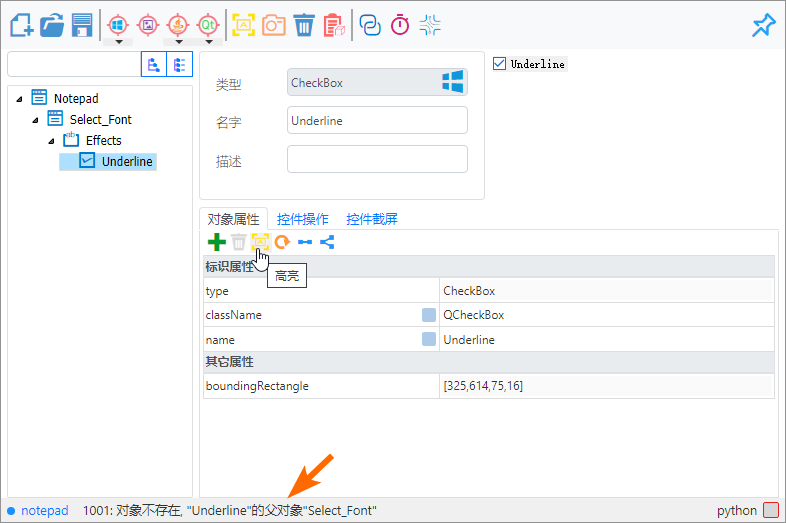
Solution
- Trace upward level-by-level: Try highlighting the parent of the target control, then its parent, and so on to determine where the lookup fails. Start from the top-level window control.
- Ensure the parent is visible: If the missing parent resides in a popup or dynamically loaded panel, make sure the popup/panel is open at the time of detection. In automated scripts, perform the action that triggers the parent to appear and use
exists()to wait for it. - Check parent attributes: If the parent itself cannot be highlighted despite being visible, follow the steps in Case 4 to inspect and correct its identifying attributes.
Case 3: Multiple similar parent instances cause ambiguity (parent highlights, but child cannot be found)
Symptom
The parent control can be highlighted, but Model Manager’s status bar reports multiple found objects (e.g., Found 5 objects). The child control cannot be highlighted.
Cause
When multiple parent instances share similar identifying attributes, CukeTest cannot determine which instance to use as the search root for the child control.
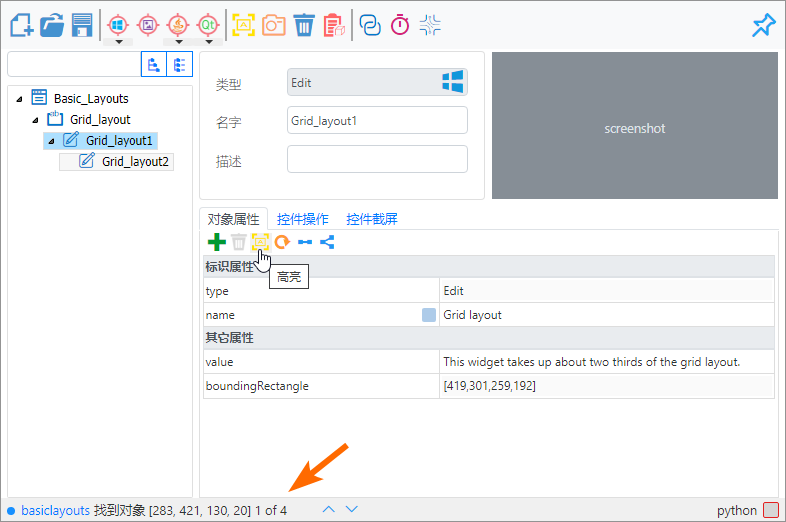
Solution
Add an index attribute to the correct parent instance to pinpoint it. index starts from 0.
- Identify the correct parent instance: While highlighting the parent, use the status bar’s left/right arrows to cycle through found instances. Observe which instance is framed on-screen and determine the instance index (for example, the 4th instance).
- Add index manually: In Model Manager select the parent, then in the Identifying Attributes area click Add Property, choose
index, and enter the correct value (e.g.,3for the 4th instance). - Auto-add index:
- Select the parent in Model Manager.
- Click the “Update attributes from application” button above the attributes area.
- In the application, click the specific parent instance you want.
- In the “Update Attributes” dialog click Add Index. Model Manager will compute and append the correct
indexvalue.
After adding index, try Highlight again and verify if the child control can now be located.
Case 4: The control’s attributes change dynamically (control cannot be highlighted in Model Manager)
Symptom
The control is visibly present in the UI, but Model Manager reports 1001: Object not found. Even when parents can be uniquely located, this control still cannot be highlighted.
Cause
Certain identifying attributes (e.g., name, text, windowTitle) may change at runtime. For example, a window title might include the opened file name, or a label’s text may vary with application state. If the model stored a previous or static attribute value, the changed attribute prevents matching.
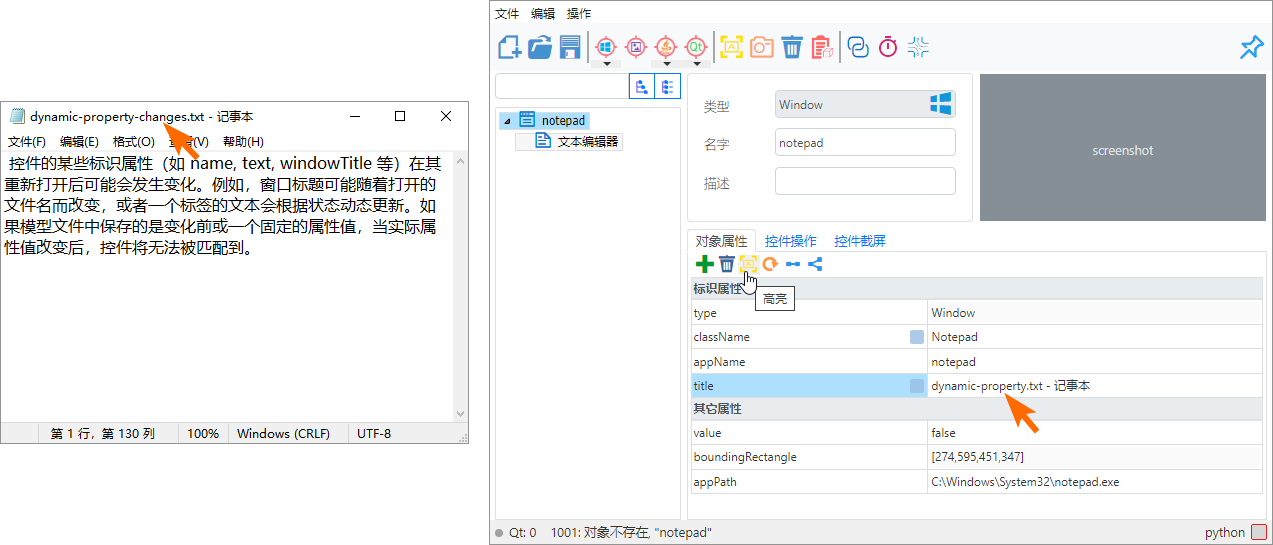
Solution
- Re-spy and compare attributes:
- Use the Spy function in Model Manager (or hold Ctrl and drag the target icon onto the control) to re-capture the control.
- Compare the newly captured attributes with the saved model attributes to identify which attributes changed.
- Adjust attribute matching:
- Avoid matching on volatile attributes.
- Change the property’s matching pattern to a more flexible mode, for example:
- Contains — when part of the value is stable.
- Starts With — when the value begins with fixed text.
- Ends With — when the value ends with fixed text.
- Regex — for complex dynamic patterns.
- Alternatively, remove unstable attributes or choose a more stable combination of attributes for identification.
After updating the matching rules, attempt to highlight the control again to confirm the issue is resolved.
By following these steps, you should be able to diagnose and resolve most occurrences of Error: 1001: Object not found. Reliable object identification is essential for successful automation — mastering the Model Manager and these debugging techniques will significantly enhance the stability and effectiveness of your tests.