Installation on Mac
For macOS users, CukeTest provides an easy-to-use installation package in .dmg format. With the following steps, you can complete the installation and the configuration of the necessary system permissions to ensure smooth operations of automated testing.
Installation steps
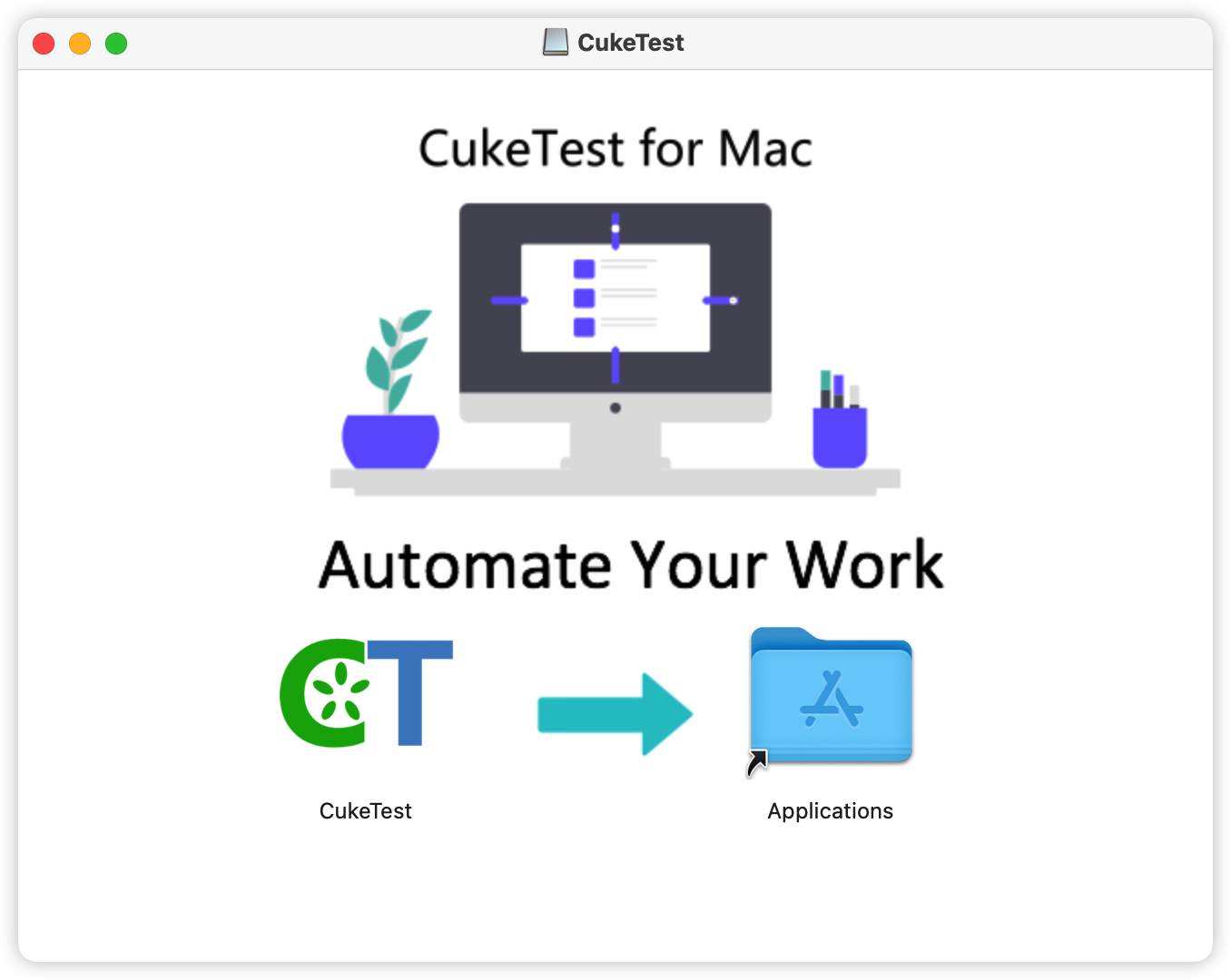
- Double-click the downloaded CukeTest
.dmgfile. - Drag the CukeTest icon into the
Applicationsfolder to complete the installation.
Configuring System Permissions
Before using CukeTest for automation testing, please make sure that CukeTest has already been granted the required system permissions, particularly Screen Recording and Accessibility. These permissions are essential for CukeTest to function properly.
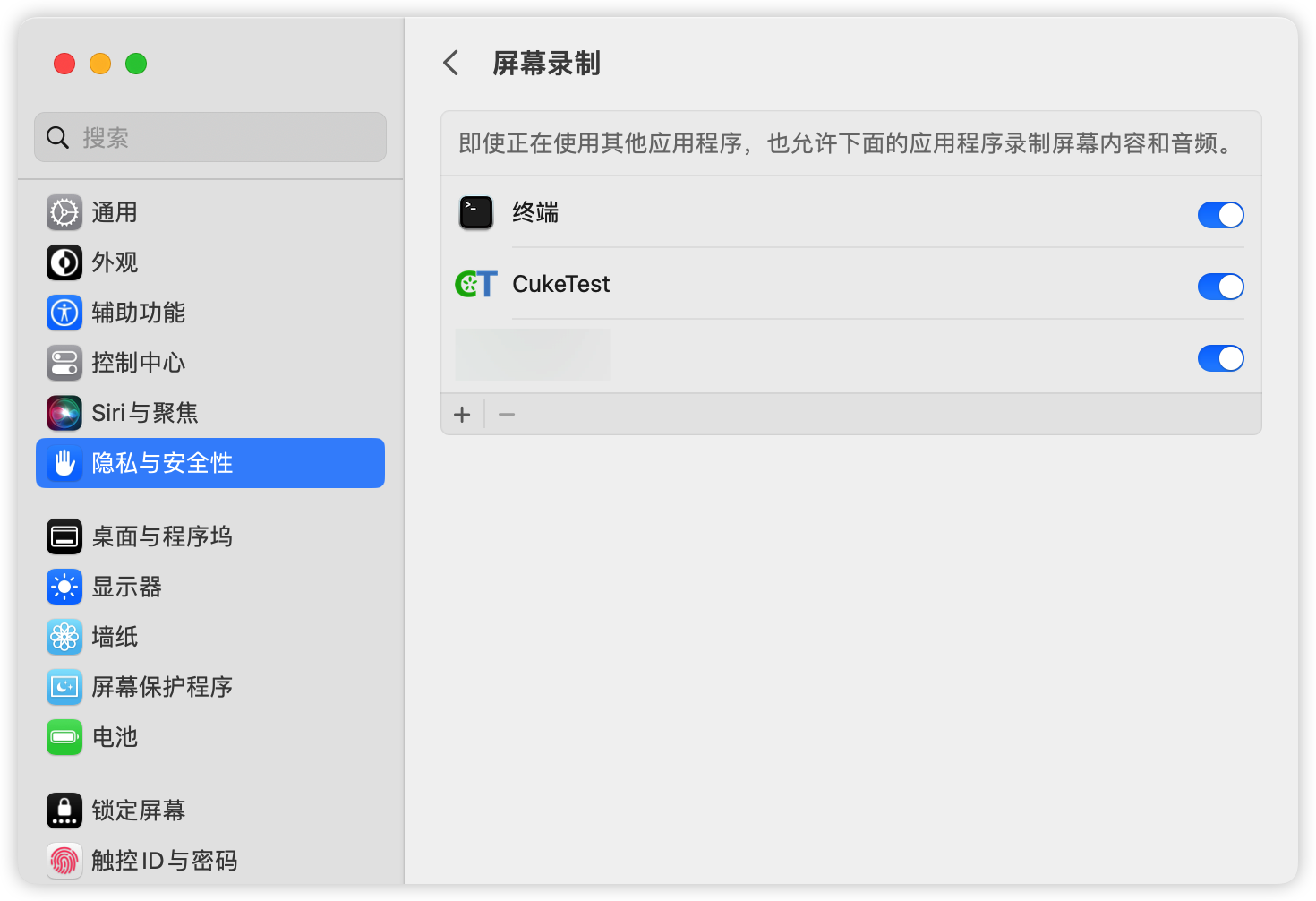
Granting Screen Recording Permission
- Open the window of System Preferences and click Security & Privacy.
- Select the Screen Recording tab.
- Check the box next to CukeTest to grant the permission of Screen Recording.
Granting Accessibility Permission
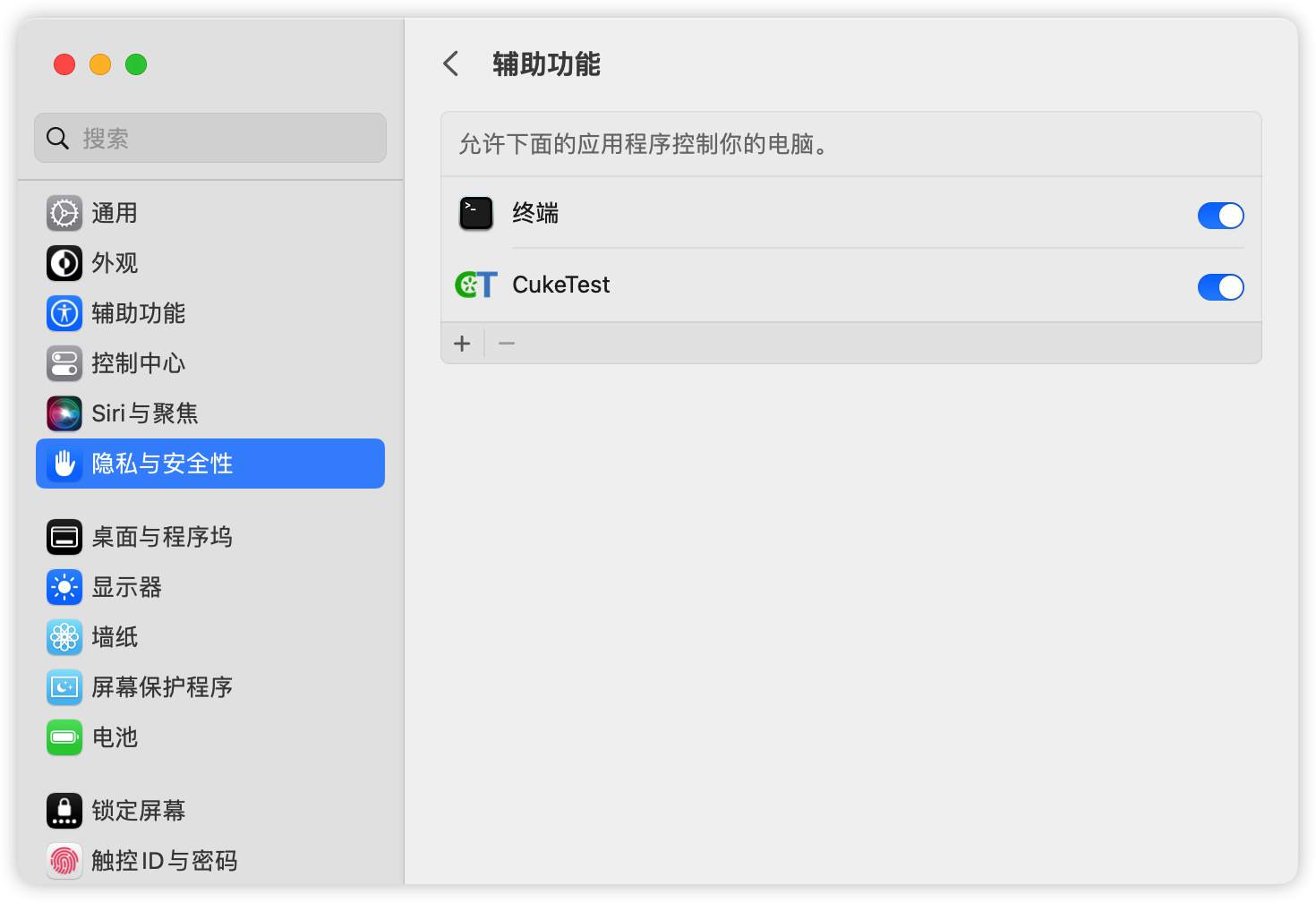
- In the Security & Privacy settings, select the Accessibility tab.
- Check the box next to CukeTest to grant the permission of Accessibility.
Granting Permissions to the Terminal
If you plan to use CukeTest via the Terminal, you should also grant the permissions for Screen Recording and Accessibility to the Terminal.
Installation Completed
After completing the steps above, you should be able to use CukeTest smoothly for your Automated Testing.
If you encounter any issues during installation or setup, please do not hesitate to contact our support team for assistance.