Control Operations
On the Control Operations page, you can view all the methods supported by the current control object and quickly generate corresponding call scripts. The methods are divided into two categories:
- Action Methods: Interact directly with the control, such as click, input text, scroll, etc. You can customize these operations by adjusting the input parameters.
- Property Methods: Retrieve the control's property values without performing actual operations, used for querying the current state or attributes of the control.
This page also provides debugging functionality and automatic script generation, allowing test developers to validate control operations efficiently:
- Copy Method Code
 : Copies the selected method's code to the clipboard using default parameters, equivalent to clicking "Call Default".
 - Copy Checkpoint Code: Shows the control's real-time properties; select the attributes to generate checkpoint code, which is automatically copied to the clipboard for insertion into test scripts.
- Debug Method
 : Opens the debug panel, allowing input of different parameters to verify execution. Click "Copy Code" to insert the tested code directly into the script.
 - Call Default
 : Executes the method immediately using default parameters. Click again to stop execution.
Additional auxiliary features include descriptive mode, virtual control method display, and API search:
- Descriptive Mode Toggle
 : When enabled, generated scripts use descriptive mode code, which reduces dependency on the model file but produces slightly more complex code.
 - Virtual Control Method Display Toggle
 : Shows methods for virtual controls; enabling this automatically generates call scripts for virtualized controls.
 - Search API: Quickly find target methods by entering the method name or keywords.
Debugging Control Operations
When writing and debugging automation scripts, it is often necessary to verify that a control method executes correctly. The Model Manager provides an intuitive and efficient debug feature for instant testing and adjustment of control operations.
If a method executes successfully in the Model Manager but fails during automation, earlier steps may have affected the control's state. Additional investigation and adjustments may be required.
Parameterized Calls
- Select the control object to debug.
- In the right-side panel, switch to the "Control Operations" tab, select the target method, and click the call button or double-click the method name to open the Method Test Window.
- Enter the required parameters in the Method Test Window and click Run. The operation executes immediately, returning the result.
- After successful execution, click Copy Code to copy the generated control operation code. Clicking Open in Editor generates a runnable test script, supporting further editing or remote execution.
The method test window interface appears as follows:
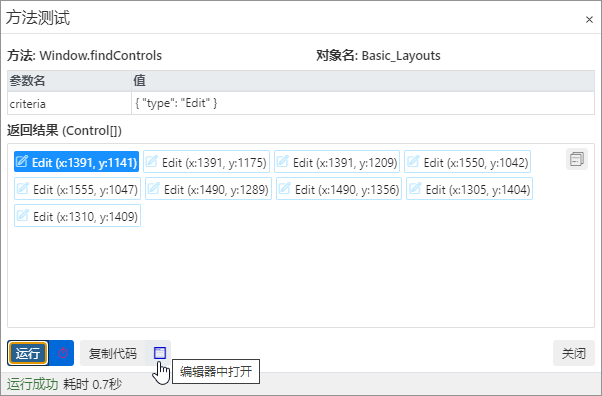
For advanced debugging, such as combining multiple APIs, click Open in Editor. CukeTest will create a runnable test script for further testing.
Call Default
For operations that do not require parameters, click Call Default to execute using default parameters for quick verification.
Delayed Execution
For controls in floating menus or temporary interfaces, delayed execution may be needed. Click the countdown button next to Run in the Method Test Window to delay execution (default 3 seconds), allowing time to adjust the interface.
Call Return Results
During debugging, the Method Test Window returns different types of results:
- Data Type: Returns numbers, strings, booleans, or Rect type values. Click the top-right Copy button to copy results.
- Control Object Type: Some methods (e.g.,
getItem()forList,Table,Treecontrols) return a control object. When run in the debug window, CukeTest highlights the control to help locate and verify its state.