Understanding Model Files
When recording tests with CukeTest, the tool automatically saves all involved control objects into a model file (.tmodel). The model file saves the unique Identification Properties of the controls, enabling the test to accurately find and operate these controls during runtime.
What is a Model File?
A model file (.tmodel) is a file that stores application control information. During the recording process, CukeTest automatically records controls and their properties. These properties include unique identification information of the controls, which helps automation test scripts to accurately locate and operate target controls during runtime.
Why Do We Need Model Files?
The existence of model files simplifies test management, allowing you to centrally manage all controls in the application in one file. In this way, even if the application control layout changes, you only need to update the Relevant Properties in the model file, without having to repeatedly modify control positioning codes in the test script.
How to Load Model Files
When recording a test, CukeTest automatically generates code to load the model file at the beginning of the script, so that you can reference controls in the model within the script. Here are examples in JavaScript and Python:
let modelWin = WinAuto.loadModel(__dirname + "/recording.tmodel");modelWin = WinAuto.loadModel(os.path.dirname(os.path.realpath(__file__)) + "/recording.tmodel")In this code, the model file is loaded via the WinAuto.loadModel() method, and the modelWin variable will be used for subsequent control operations.
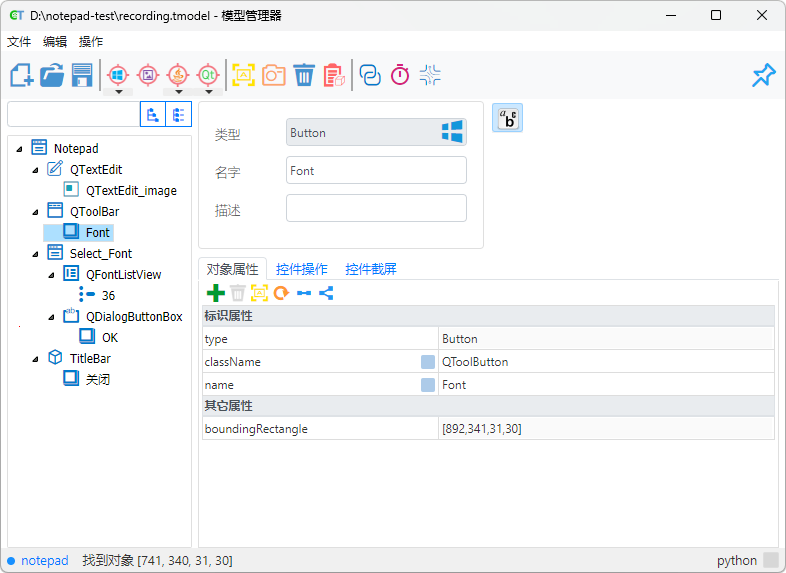
How to Use Recorded Model Files
1. Using Model Files Directly
The recorded model file can be used directly. For easier management, it is recommended to give the model file a descriptive name (e.g., notepad.tmodel), and then load the file via the WinAuto.loadModel() method. This simplifies the management of various controls across multiple scripts.
Note: If you need to use Control Snapshots in the model file, such as Image Checkpoint
checkImage(), please ensure to update the corresponding*_filesfolder name when modifying the*.tmodelfilename. For example, if the model file is renamed tonotepad.tmodel, the control screenshot folder should be namednotepad_files.
2. Merging Multiple Model Files
If there are already other model files in the project, you can merge the newly recorded model file into the existing files to centrally manage all controls.
Merging Steps
- Open Model Files: Open both the existing model file and the newly recorded model file in CukeTest.
- Drag and Merge: Drag the root node from the new model file into the tree structure of the existing model file.
- Merge Control Nodes: Right-click on the control node that needs to be merged, select Merge to Sibling, and merge the new control into the existing control tree.
This method avoids creating too many model files in the project, making test script maintenance more convenient.
Saving Controls to an Existing Model File During Recording
When recording new controls, you can choose to save them directly to an existing model file without merging them after recording. To do this, before starting recording, please enable the "Record to existing model" option and specify the model file. The newly recorded control objects will be automatically saved to that model file.
Model File Management Tips
Reasonable Model File Management helps improve the maintainability of test projects. Here are some practical suggestions:
- Clear Naming: Use descriptive names for model files for easy retrieval and maintenance later.
- Regular Merging: Regularly merge newly recorded model files into existing files to avoid cluttering the project with too many model files.
- Streamline Controls: Check the model file after recording, remove unnecessary control objects, and ensure the file is concise and easy to maintain.
Summary
Through this article, you have learned how to create, load, and manage model files. Proper management of model files not only improves the readability of test scripts but also effectively reduces repetitive operations, making the testing process more efficient and easier to maintain.