Installation on Linux
CukeTest is a cross-platform automation testing tool, which is compatible with a wide range of Linux distributions, such as Ubuntu, CentOS, and KylinOS. In addition, CukeTest can also be installed and executed in terminal-only Linux environments, making it suitable for Continuous Integration (CI) setups on Linux systems.
For a complete list of supported operating systems, please refer to the Operating System Platform Capability Table.
Installing from a .deb package
CukeTest’s .deb package follows the naming format:
cuketest_{version}_{cpu_architecture}.deb
For example: cuketest_1.8.1.0_amd64.deb.
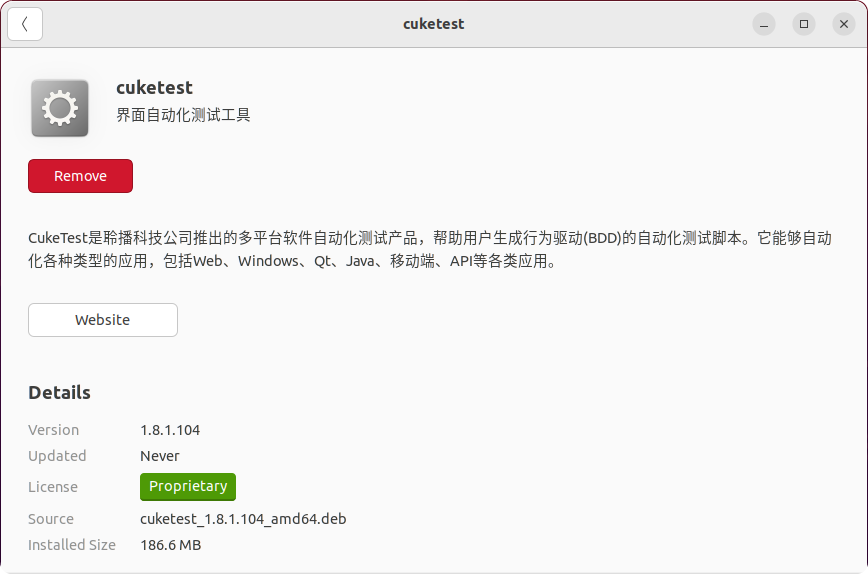
Graphical installation
- Double-click the
.debpackage. The Software Management Tool will pop up automatically after a short time. - Click Install, and follow the on-screen instructions to complete the installation.
Command-line installation
- Press Ctrl + Shift + T to open a terminal window.
- Navigate to the folder containing the
.debpackage:cd ~/share/ - Install the package with the
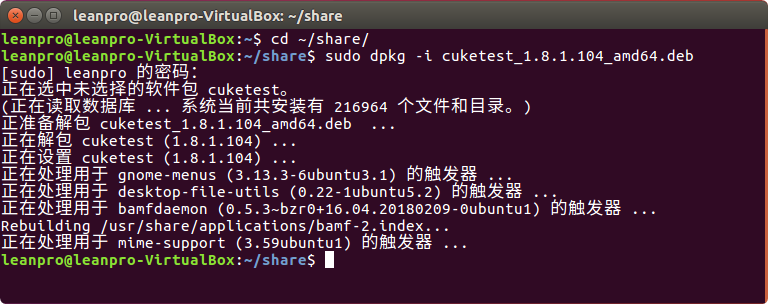
dpkgcommand (root privileges required):sudo dpkg -i cuketest_1.8.1.0_amd64.deb
After installation, you should see the output information similar to the following:
Installing from an .rpm package
CukeTest’s .rpm package follows the naming format:
cuketest_{version}.{cpu_architecture}.rpm
For example: cuketest_1.8.1.0.x86_64.rpm.
Command-line installation
- Press Ctrl + Shift + T to launch a terminal window.
- Navigate to the folder containing the
.rpmpackage:cd ~/share/ - Install the package with the
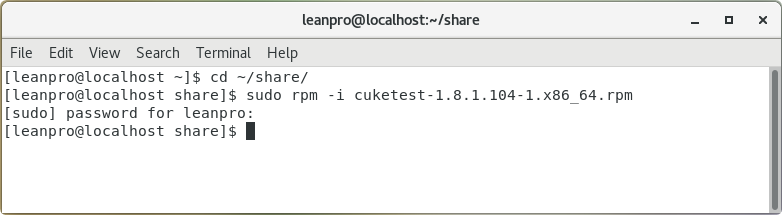
rpmcommand (root privileges required):sudo rpm -i cuketest_1.8.1.0.x86_64.rpm
If an older version of CukeTest is already installed, you have to uninstall it before the new installation, with the following command:
sudo rpm -e cuketest
Running from a .tar.gz Archive
The .tar.gz archive provides an alternative installation method for the systems where .deb or .rpm installations are not applicable.
By extracting and running the binary directly from the archive, you can use CukeTest normally, although this method is less convenient than the package-based installations.
CukeTest’s archive files are typically named like cuketest_*_amd64.tar.gz.
Assuming that you want to place CukeTest in your home directory’s /share folder, you could run CukeTest with the following steps:
- Navigate to the folder containing the archive.
- Extract the archive to the target directory with the following commands:
tar -xvf cuketest_1.7.0_amd64.tar.gz mv CukeTest-linux-x64 ~/share/CukeTest-linux-x64 cd ~/share/CukeTest-linux-x64 - As a result of the previous commands, CukeTest will be extracted to the path
~/share/CukeTest-linux-x64. - You can now launch CukeTest with the following command:
./cuketest
Installation Completed
After completing the steps above, you should be able to use CukeTest smoothly for your Automated Testing.
If you encounter any issues during installation or setup, please do not hesitate to contact our support team for assistance.