ATK Automation Mechanism
CukeTest's ATK automation functionality relies on AT-SPI. It uses Accessibility Toolkit technology to identify and operate application interfaces.
Spying ATK Controls
After enabling the ATK Access Bridge, you can use CukeTest's Model Manager to spy on controls in ATK applications.
Direct Spying
- Open Model Manager: In the CukeTest interface, locate and open the Model Manager.
Spy ATK Controls: In the Model Manager toolbar, select the
Spy ATK Controlsbutton. You can then move your mouse over any control in the ATK application to spy on it.
Add Control to Model: After clicking on the control you want to operate in the ATK application, a spy dialog will pop up. In this dialog, you can select the "Add" button to add the control to your model file.
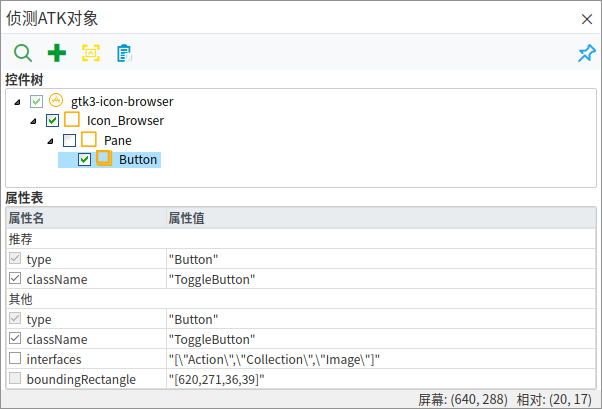
Browse/Add
Click the small arrow at the bottom of the Spy ATK Controls icon, and in the expanded menu, select Browse/Add. This will open a control tree window showing all currently detected Linux applications. You can expand the control tree layer by layer to view the control structure and check to add the desired controls. You can also click the spy button in the "Control Tree" window and move your mouse over any control in the ATK application to spy on it, and the control tree will automatically expand to the corresponding level.
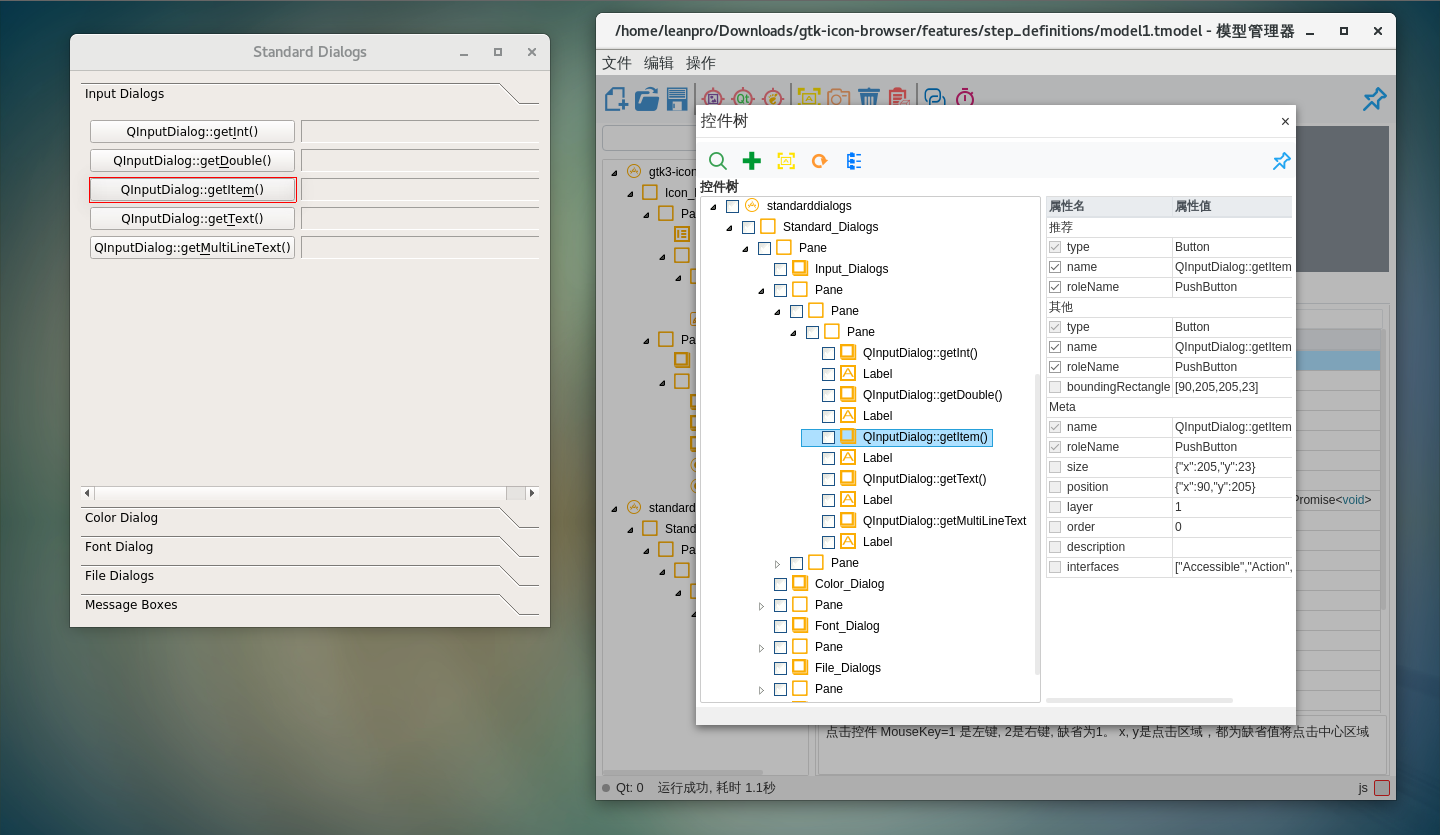
After completing these steps, you can write test scripts in CukeTest to perform validation and operations on these added ATK objects, achieving automated testing.
Referencing ATK Models in Scripts
The automation API for ATK controls differs from that of Qt controls, so a specific method is required when loading ATK model files. We recommend using the code generation feature in CukeTest's Model Manager. The specific steps are as follows:
- Open Model Manager: In the Model Manager interface, select the "Control Operations" tab on the right to switch to the methods panel.
Copy Model Loading Code: In the methods panel, click the button shown in the image below to automatically copy the global loading code method to the clipboard:
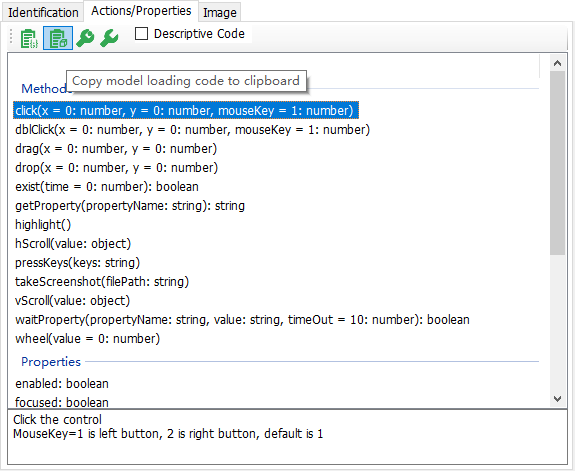
Paste Code into Editor: Open your code editor and paste the code from the clipboard into your script file.
The generated code should be in a format similar to the following:
const { AtkAuto } = require("leanpro.atk");
let model = AtkAuto.loadModel("ProjectDir\\model1.tmodel");
from leanproAuto import AtkAuto
model = AtkAuto.loadModel("ProjectDir\\model1.tmodel")