Spying Rules
When using CukeTest for recording operations and spying controls, the tool automatically selects appropriate identifying attributes and names for control objects.
However, in some complex or dynamically changing applications, the default rules may not fully meet your requirements. In such cases, manual adjustments to identifying attributes and object names may be necessary. This process can be time-consuming — this is where Spying Rules help. They automatically apply the most suitable control properties, simplifying control management.

How to Use
CukeTest automatically applies saved rules during recording and spying. If a rule matches the current control, CukeTest will save the control’s information according to the rule settings instead of the default settings. If multiple rules match the same control, the system applies all relevant rules to ensure optimal control recognition.
Note: Spying rules are applied globally and affect all open CukeTest instances, not only the current project.
Editing Rules
By default, CukeTest does not include any pre-defined spying rules. You can create rules manually as needed. To edit rules, follow these steps:
- Open the Model Manager in CukeTest.
- Click the Manage Spying (Recording) Rules button on the toolbar.
- In the pop-up dialog, you can double-click an existing rule to edit it or click Add Rule to create a new one.
In the rule editor, you can configure the rule’s name, conditions, actions, and other properties.
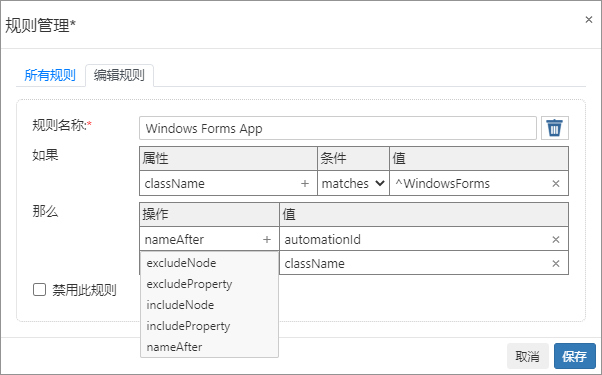
Rule Configuration Details
Rule Name
- Enter a name for the rule, e.g., "WinForm Control Recognition Rule."
Condition Settings (If):
- Property: Select the control property to check, commonly used properties include
className,automationId,nameandtext. - Condition:
exists: Checks whether the target property exists (defaulttrue).matches: Matches property values using a regular expression, suitable for dynamic properties.equals: Exact match for the property value.
- Value:
- For
exists, no value is required (defaulttrue). - For
matches, provide the regular expression. - For
equals, provide the exact text value.
- For
- Property: Select the control property to check, commonly used properties include
Action Settings (Then):
Specify the actions to perform when the condition is met:excludeNode: Exclude this control from the control tree.excludeProperty: Exclude a specific property from identification attributes.includeNode: Force retain the control even if it would normally be ignored.includeProperty: Mark a property as an identifying attribute.nameAfter: Use a specified property value as the control’s name.
Disable Rule: Temporarily disable a rule by clicking Disable Rule.
Once configured, click Save to store the rule.
Import and Export
You can export created rules as JSON files to share with others. Similarly, rules can be imported from JSON files into CukeTest to ensure consistency across test environments.
Practical Use Cases
In some desktop applications, the className property of controls may change dynamically.
For example, in WinForm applications, the class name of ToolBar controls (e.g., WindowsForms10.Window.8.app) often includes dynamically generated parts: