Spying Control Objects
The Model Manager provides multiple methods for detecting and capturing various types of controls and adding them to your project’s application model, enabling you to efficiently manage control objects in automated testing.
These detection methods apply to the following categories of controls:
- Windows Objects – Controls used on Windows systems
- Linux ATK Objects – Controls for Linux desktop environments
- Cross-platform Qt Objects – Controls built with the Qt framework
- Java Objects – Controls in Java applications
- Image Objects – Objects identified through images or patterns
- Virtual Control Objects – Used when a control cannot be recognized through standard object properties
You can access these detection features from the toolbar buttons:

Note: The available buttons vary depending on the operating platform. For example, the Windows object detection button isn’t available on Linux or macOS.
Starting Control Detection
1. Add a Single Control Object
CukeTest supports detection of Windows, Java, Qt, and Linux controls. This function is used to detect and add a single control object to the Object Model.
After clicking the “Add XX Object” button, the Model Manager window will minimize. You can then left-click the target control in your application. The Model Manager detects the control and displays the following dialog:

- Tree Structure: The upper section shows the hierarchical structure of controls. The control you clicked appears as a leaf node, while its parent controls are displayed as ancestor nodes.
- Object Properties: The lower section lists the properties of the selected object, including Identification Attributes and auxiliary attributes.
- Smart Selection: The Model Manager automatically selects nodes that best represent the target control, ignoring generic container elements such as panels or custom controls to reduce noise.
Identification attributes are the key to uniquely recognizing a control. For example, for Windows controls, the Type property indicates the control type. If the control has an AutomationId, it usually serves as a unique identifier and should be preferred. If not, a combination of ClassName and Name can be used to uniquely locate the control.
Tip: Although the system’s default recommendations work for most cases, you can manually adjust the selected attributes for more precise and efficient recognition.
You can also define custom Spying Rules to specify which control properties to use.
Verifying Control Uniqueness
When detecting Qt or Windows controls, CukeTest provides an Advanced Verification feature to confirm control uniqueness.
Sometimes, a control’s attributes may not uniquely identify it — for example, due to dynamic UI changes or multiple controls sharing identical attributes.
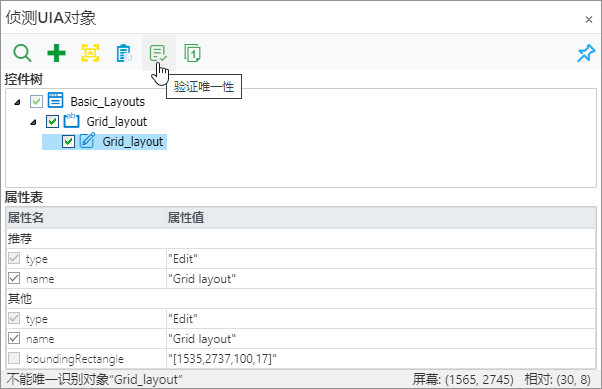
To verify, click Verify Uniqueness at the top of the Spy window. The system will use the recommended attributes to verify whether the control can be uniquely identified. Verification results are displayed in the lower-left corner of the window:
- The control can be uniquely identified – The current attributes are sufficient to locate the control.
- The control “controlName” cannot be uniquely identified – The attributes are not unique; further adjustments are needed.
If a control cannot be uniquely identified, you can use the Auto Add Index feature to automatically assign a unique index to the object.
Auto Add Index
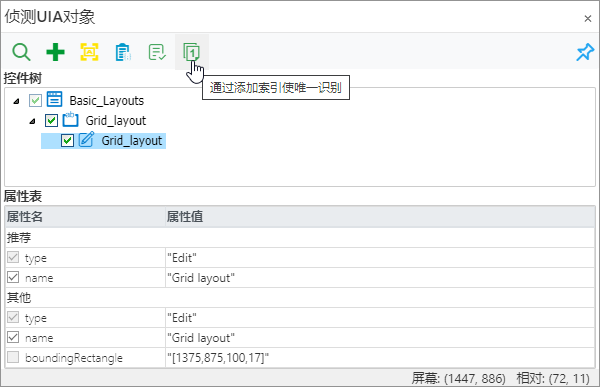
In some cases, even after setting multiple identifying attributes, the target control may still not be uniquely located. You can resolve this by adding an Index (index) attribute. When multiple controls match the same attributes, the index value specifies the position of the target control within the matched list (default is 0, representing the first match). Click the Make it unique by adding index button, and the system automatically adds an index value to the first non-unique control.
For deeply nested controls, you can click multiple times until the entire object chain uniquely identifies the target control.
When you see the message “No more indexes need to be added,” the object has been uniquely identified.
Note: The
indexis not an inherent control property — it simply represents the control’s order within its parent structure.
If the interface layout changes, the index value may no longer be valid.
If the UI layout is likely to change dynamically, it is recommended to avoid using theindexattribute.
You can also manually add an index in the control’s object properties instead of through the spy window.
2. Add Multiple Control Objects in Batch
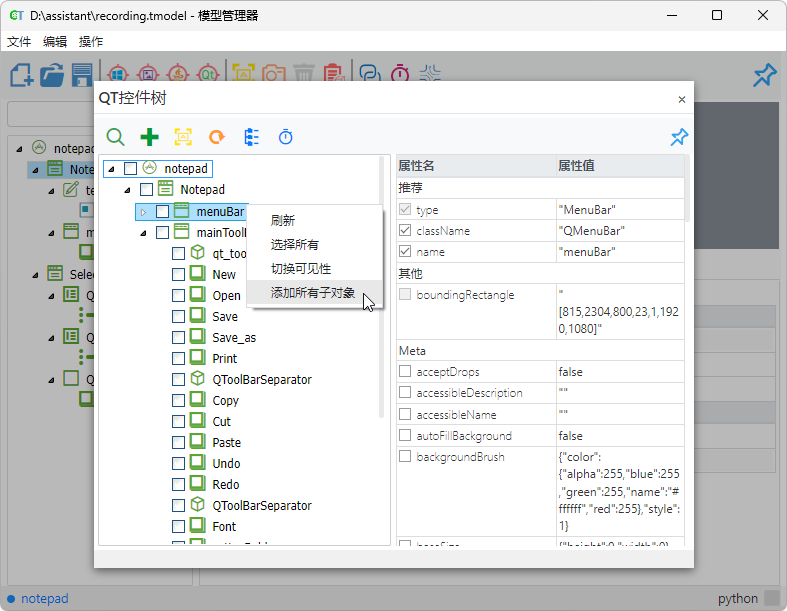
The Model Manager also supports browsing the entire hierarchy of controls within a desktop application, allowing users to inspect control relationships and attributes while adding multiple controls at once. This feature supports Windows, Java, Qt, and ATK controls.
Users can select multiple controls and add them to the model in a single operation, improving efficiency in managing control objects.

Additionally, users can right-click a parent node and choose Add All Sub-Objects from the context menu to import all child controls under that node with one click, further streamlining the process.
Practical Tips
If the control you want to add is not immediately visible and requires several clicks to appear, refer to Spying Hidden or Pop-up Controls for detailed instructions on how to successfully detect and add such objects.