Code Generation
Generating and debugging code are crucial steps in developing automation scripts, ensuring both efficiency and accuracy. This chapter provides a detailed guide to generating model loading code, control operation code, and debugging control actions.
Generating Model Loading Code
After saving, the object model is stored as a file with the .tmodel extension. To use this model in automation scripts, you must first load the model file. The Model Manager can automatically generate the loading code, eliminating the need for manual input. There are two ways to generate the model loading code:
Method 1: Drag-and-Drop the File
Drag the model file from the file explorer panel into the code editor. The corresponding model loading code is automatically generated.

Method 2: Copy Code
In the Model Manager, select a control and switch to the methods panel. Click the Copy Model Code to Clipboard button to automatically copy the global model loading method.
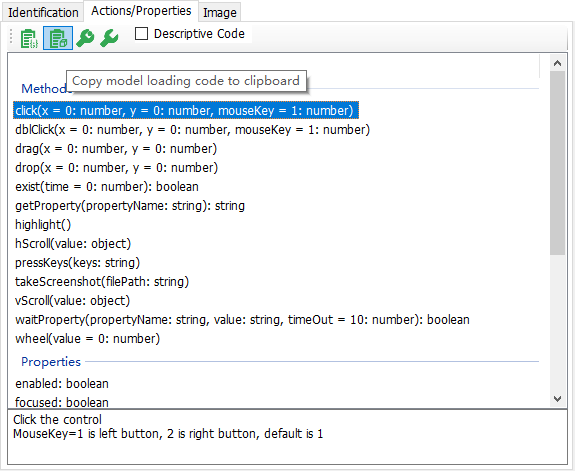
Paste the copied code into the code editor. The generated code will look similar to the example below:
JavaScriptconst { WinAuto } = require("leanpro.win"); let model = WinAuto.loadModel("C:\\temp\\vbtest\\BuildYourOffice.tmodel");
Note: Different control types generate different model loading code. Therefore, select the control object before clicking Copy Model Code. For example, selecting a cross-platform Qt object generates code that uses the
leanpro.qtlibrary.
Generating Control Operation Code
The Model Manager can generate two types of control operation code:
Model-Based Operation Code
This type of code requires loading the model first. Each method call locates the corresponding object in the model by its name.
For example:
await model.getWindow("SimpleStyles").getCheckBox("Normal1").click();The code finds the window object named
SimpleStylesin the model, then locates the checkbox namedNormal1under that parent object and clicks it.
Descriptive Mode Code
Descriptive mode means that the properties of the target control are explicitly defined within the code. By selecting the Descriptive Mode option  , the generated code will be based on Descriptive Mode.
Code Generation Methods
1. Drag Method Name
Select a method in the Control Operations page and drag it into the CukeTest editor to automatically generate the corresponding operation code.
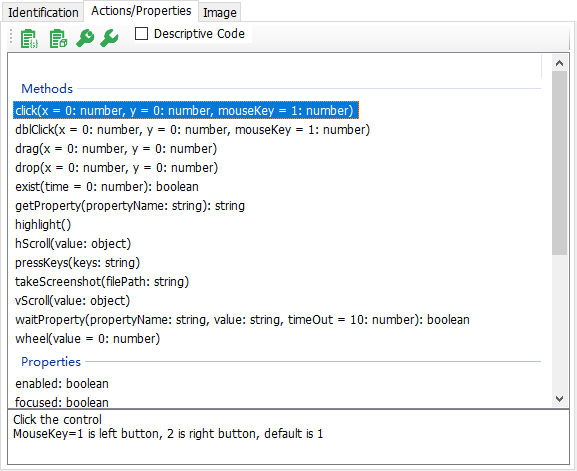
In JavaScript mode, dragging an asynchronous method into the editor outside of a function body will automatically wrap it in an Immediately Invoked Function Expression (IIFE), allowing the asynchronous method to execute immediately, which simplifies script debugging.
2. Copy and Paste
Select a method in the Control Operations page and click  to copy the generated code to the clipboard. Open the editor and paste the code.
3. Drag Control Node
Drag a node from the object model tree directly into the editor. The generated code includes only the control object, without any method calls. You can then type a dot (.) after the object name and choose the desired method from the autocomplete list.