运行测试
您可以运行单个测试、一组测试或所有测试。测试可以在一个浏览器或多个浏览器上运行。默认情况下,测试以无头模式运行,这意味着在运行测试时不会打开浏览器窗口,结果将在终端中看到。如果您愿意,可以使用 --headed 标志以有头模式运行测试。
在 Chromium 上运行测试
pytest运行单个测试文件
pytest test_login.py运行一组测试文件
pytest tests/todo-page/ tests/landing-page/使用函数名称运行测试
pytest -k "test_add_a_todo_item"在有头模式下运行测试
pytest --headed test_login.py在特定浏览器上运行测试
pytest test_login.py --browser webkit在多个浏览器上运行测试
pytest test_login.py --browser webkit --browser firefox并行运行测试
pytest --numprocesses auto(这假设安装了
pytest-xdist。有关更多信息,请参阅 此处。)
有关更多信息,请参阅 Playwright Pytest 用法 或 通用 CLI 用法 的 Pytest 文档。
调试测试
由于 Playwright 在 Python 中运行,您可以使用您选择的调试器对其进行调试,例如 Visual Studio Code 中的 Python 扩展。Playwright 带有 Playwright Inspector,允许您逐步执行 Playwright API 调用,查看其调试日志并探索 选择器。
- Bash
- PowerShell
- Batch
PWDEBUG=1 pytest -s
$env:PWDEBUG=1
pytest -s
set PWDEBUG=1
pytest -s
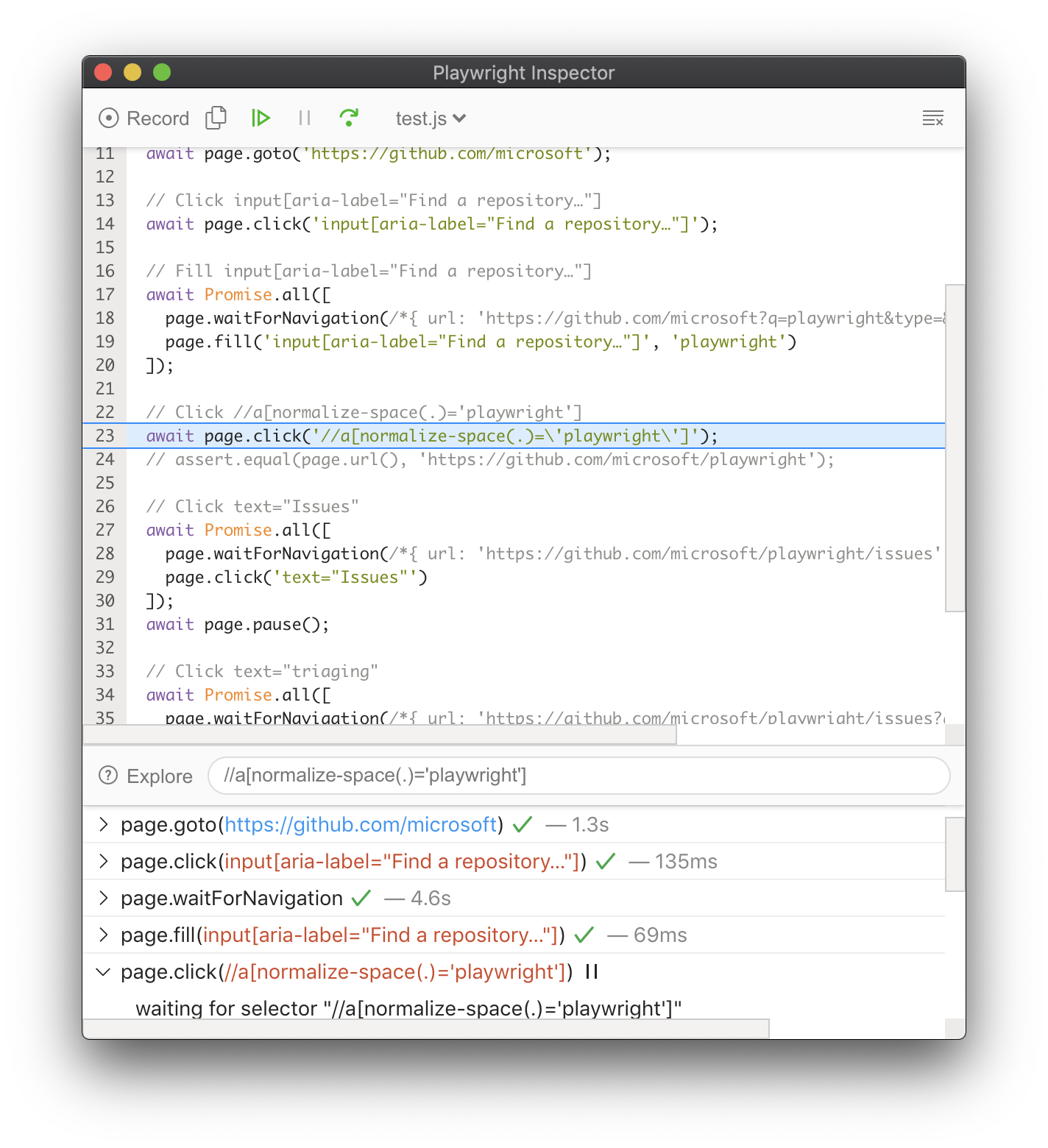
查看我们的 调试指南 以了解更多关于 Playwright Inspector 以及使用 浏览器开发者工具 进行调试的信息。