调试选择器
当页面上不存在元素时,Playwright 将抛出超时异常,如 locator.click: Timeout 30000ms exceeded。有多种调试选择器的方法:
- Playwright Inspector 逐步执行每个 Playwright API 调用以检查页面。
- Browser DevTools 使用 DevTools 元素面板检查选择器。
- Trace Viewer 查看测试运行期间页面的样子。
- Verbose API logs 在定位元素时显示 可操作性检查。
Using Playwright Inspector
打开 Playwright Inspector 并单击 Explore 按钮,将鼠标悬停在屏幕上的元素上,然后单击它们以自动为这些元素生成选择器。要验证选择器指向的位置,请将其粘贴到检查器输入字段中:

Using DevTools
您还可以使用任何浏览器开发者工具控制台中的以下 API。
在带有 PWDEBUG=console 的调试模式下运行时,开发者工具控制台中可以使用 playwright 对象。
- 使用
PWDEBUG=console运行 - 设置断点以暂停执行
- 在浏览器开发者工具中打开控制台面板
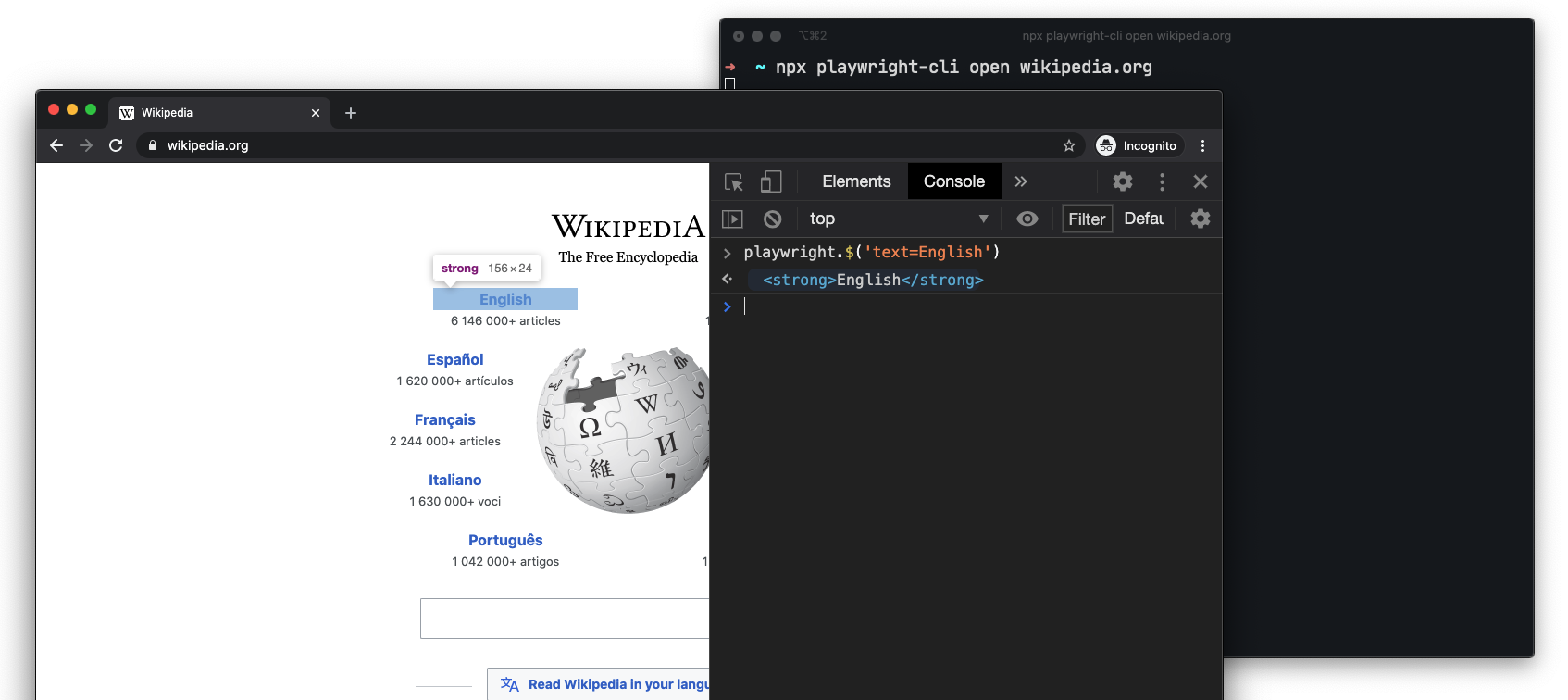
playwright.$(selector)
查询 Playwright 选择器,使用实际的 Playwright 查询引擎,例如:
> playwright.$('.auth-form >> text=Log in');

<button>Log in</button>
playwright.$$(selector)
与 playwright.$ 相同,但返回所有匹配的元素。
> playwright.$$('li >> text=John')

> [<li>, <li>, <li>, <li>]
playwright.inspect(selector)
在元素面板中显示元素(如果相应浏览器的 DevTools 支持)。
> playwright.inspect('text=Log in')
playwright.locator(selector)
查询 Playwright 元素,使用实际的 Playwright 查询引擎,例如:
> playwright.locator('.auth-form', { hasText: 'Log in' });

> Locator ()
>   - element: button
>   - elements: [button]
playwright.highlight(selector)
高亮显示定位器的第一次出现:
> playwright.highlight('.auth-form');
playwright.clear()
> playwright.clear()
清除现有的高亮显示。
playwright.selector(element)
为给定元素生成选择器。
> playwright.selector($0)

"div[id="glow-ingress-block"] >> text=/.*Hello.*/"
Verbose API logs
Playwright 支持使用 DEBUG 环境变量进行详细日志记录。
- Bash
- PowerShell
- Batch
DEBUG=pw:api pytest -s
$env:DEBUG="pw:api"
pytest -s
set DEBUG=pw:api
pytest -s