命令行工具
Playwright 附带了命令行工具。
Usage
playwright
Install browsers
Playwright 可以安装支持的浏览器。
# Running without arguments will install default browsers
playwright install
您还可以通过提供参数来安装特定的浏览器:
# Install WebKit
playwright install webkit
查看所有支持的浏览器:
playwright install --help
Install system dependencies
系统依赖项可以自动安装。这对 CI 环境很有用。
# See command help
playwright install-deps
您还可以通过将其作为参数传递来仅安装单个浏览器的依赖项:
playwright install-deps chromium
还可以将 install-deps 与 install 结合使用,并通过单个命令安装浏览器和操作系统依赖项。这将为 Chromium 执行这两项操作,但您也可以省略它。
playwright install --with-deps chromium
Generate code
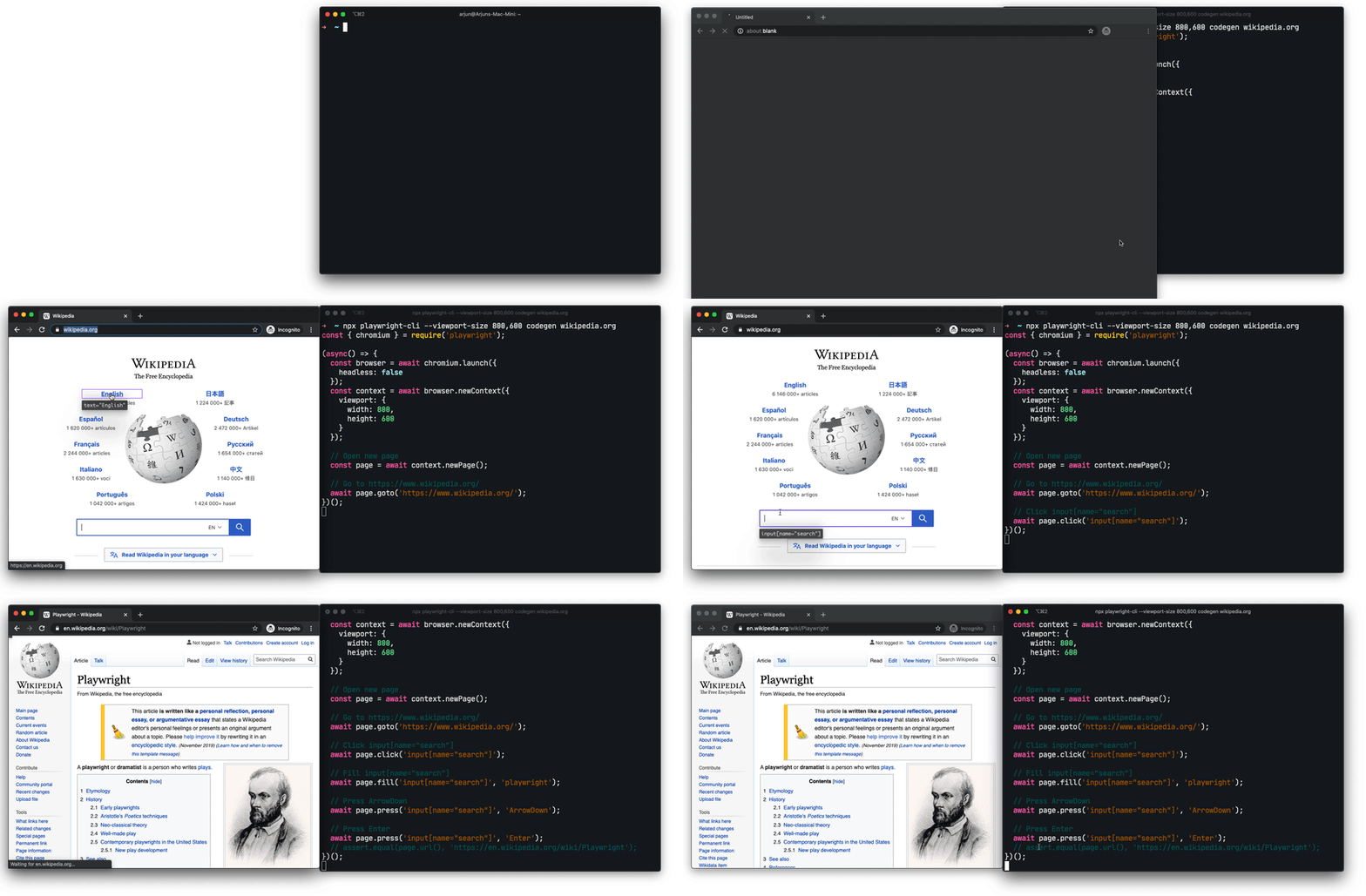
playwright codegen wikipedia.org
运行 codegen 并在浏览器中执行操作。Playwright CLI 将为用户交互生成 JavaScript 代码。codegen 将尝试生成弹性的基于文本的选择器。
Preserve authenticated state
运行带有 --save-storage 的 codegen 以在结束时保存 cookies 和 localStorage。这对于单独记录身份验证步骤并在以后重用它很有用。
playwright codegen --save-storage=auth.json
# Perform authentication and exit.
# auth.json will contain the storage state.
使用 --load-storage 运行以使用以前加载的存储。这样,所有 cookies 和 localStorage 都将恢复,使大多数 Web 应用程序进入已验证状态。
playwright open --load-storage=auth.json my.web.app
playwright codegen --load-storage=auth.json my.web.app
# Perform actions in authenticated state.
Codegen with custom setup
如果您想在某些非标准设置中使用 codegen(例如,使用 browser_context.route(url, handler, **kwargs)),可以调用 page.pause(),它将打开一个带有 codegen 控件的单独窗口。
- Sync
- Async
from playwright.sync_api import sync_playwright

with sync_playwright() as p:
    # Make sure to run headed.
    browser = p.chromium.launch(headless=False)

    # Setup context however you like.
    context = browser.new_context() # Pass any options
    context.route('**/*', lambda route: route.continue_())

    # Pause the page, and start recording manually.
    page = context.new_page()
    page.pause()
import asyncio
from playwright.async_api import async_playwright

async def main():
    async with async_playwright() as p:
        # Make sure to run headed.
        browser = await p.chromium.launch(headless=False)

        # Setup context however you like.
        context = await browser.new_context() # Pass any options
        await context.route('**/*', lambda route: route.continue_())

        # Pause the page, and start recording manually.
        page = await context.new_page()
        await page.pause()

asyncio.run(main())
Open pages
使用 open,您可以使用 Playwright 捆绑的浏览器浏览网页。Playwright 提供跨平台 WebKit 构建,可用于在 Windows、Linux 和 macOS 上重现 Safari 渲染。
# Open page in Chromium
playwright open example.com
# Open page in WebKit
playwright wk example.com
Emulate devices
open 可以模拟 playwright.devices 列表中的移动和平板设备。
# Emulate iPhone 11.
playwright open --device="iPhone 11" wikipedia.org
Emulate color scheme and viewport size
# Emulate screen size and color scheme.
playwright open --viewport-size=800,600 --color-scheme=dark twitter.com
Emulate geolocation, language and timezone
# Emulate timezone, language & location
# Once page opens, click the "my location" button to see geolocation in action
playwright open --timezone="Europe/Rome" --geolocation="41.890221,12.492348" --lang="it-IT" maps.google.com
Inspect selectors
在 open 或 codegen 期间,您可以在任何浏览器的开发者工具控制台中使用以下 API。
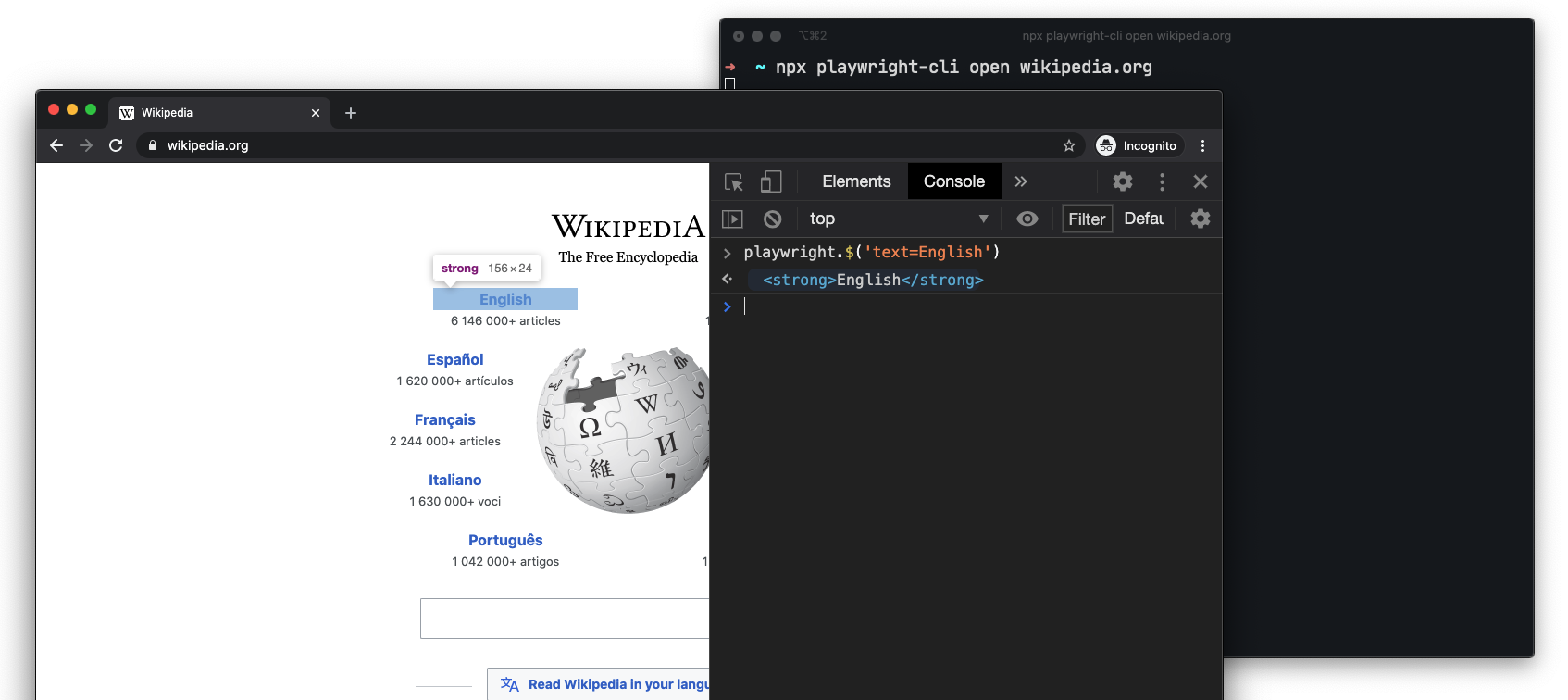
playwright.$(selector)
查询 Playwright 选择器,使用实际的 Playwright 查询引擎,例如:
playwright.$$(selector)
与 playwright.$ 相同,但返回所有匹配的元素。
playwright.inspect(selector)
在元素面板中显示元素(如果相应浏览器的 DevTools 支持)。
playwright.locator(selector)
查询 Playwright 元素,使用实际的 Playwright 查询引擎,例如:
playwright.selector(element)
为给定元素生成选择器。
Take screenshot
# See command help
playwright screenshot --help
# Wait 3 seconds before capturing a screenshot after page loads ('load' event fires)
playwright screenshot \
    --device="iPhone 11" \
    --color-scheme=dark \
    --wait-for-timeout=3000 \
    twitter.com twitter-iphone.png
# Capture a full page screenshot
playwright screenshot --full-page en.wikipedia.org wiki-full.png
Generate PDF
PDF 生成仅在无头 Chromium 中工作。
# See command help
playwright pdf https://en.wikipedia.org/wiki/PDF wiki.pdf